
Mosmoxmosmox

Mosmox journal

In focus — releases.

A selection of publications grouped under the releases tag.

Feature Flags and Remote Config: Shipping Features Without a New Release

Feature Flags and Remote Config: Shipping Features Without a New Release

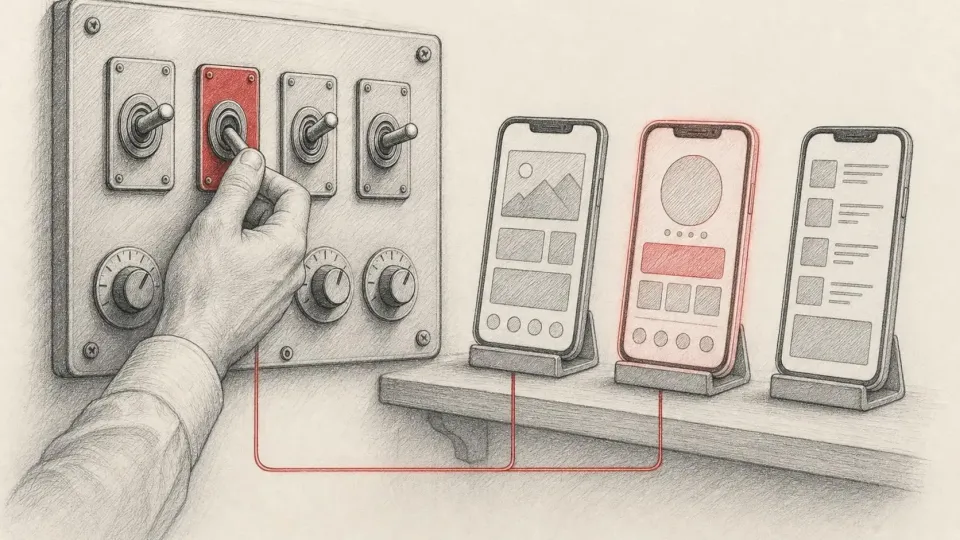
On the web you can fix a bug and deploy in ten minutes. In a mobile app, between "found the problem" and "fixed for every user" lie a build, App Store review, a staged rollout and weeks of waiting for people to update. Some users don't update for months. So anything you can change without a new binary, you should be able to change without one.

Feature flags and Remote Config give you exactly that: turning features on and off, changing copy and parameters, running gradual launches and killing something broken in an emergency. Below is how we at Mosmox design these systems, which tools we choose, what the store rules allow, and how to keep flags from turning into tech debt.

Four kinds of flags, and why they shouldn't be mixed

A useful classification comes from Pete Hodgson's article Feature Toggles on Martin Fowler's site. The types differ in lifespan and in who controls them:

TypePurposeLifespanOwned by
Release toggleHide unfinished work, gradually expose finished workWeeks; removed after 100% launchEngineering, product
Experiment toggleA/B test: different variants for different groupsLength of the experimentProduct, analytics
Ops toggle / kill switchSwitch off a feature or integration under load or during an outageLong, sometimes permanentEngineering, support
Permission toggleAccess for paying users, beta testers, staffPermanentProduct, business logic

The mistake we see most is using one mechanism for everything. Access to a paid feature decided by Remote Config on the client is trivial to bypass: any flag stored on the device can be tampered with. Entitlements must be checked on the server; a client-side flag should only control presentation.

Firebase Remote Config: capabilities and limits

Firebase Remote Config is the most common free option on mobile. What to know before adopting it:

  • In-app defaults. The app must ship a default for every parameter. A first launch with no network has to work correctly.
  • Fetch interval. The default minimum fetch interval is 12 hours; you lower it during development, while overly frequent fetches in production hit throttling.
  • Real-time updates. A real-time Remote Config listener receives changes right after they're published — useful for a kill switch when waiting 12 hours is unacceptable.
  • Conditions. Targeting by app version, platform, country, language, Analytics audiences and a random percentage of users.
  • Limits. Up to 2,000 parameters and 500 conditions per template. Plenty for most projects, but a signal not to turn Remote Config into a database.
  • Version history and rollback. Every publish creates a template version you can revert to in one click.

Activation strategy

The key decision is when to apply fetched values. Change the UI mid-session and users see the screen jump. We usually fetch in the background and activate on the next launch; the exception is a kill switch, which applies immediately.

When a dedicated service is worth it

ToolStrengthsWhen to choose it
Firebase Remote ConfigFree; integrates with Analytics, A/B Testing and CrashlyticsMost mobile projects on Firebase
LaunchDarkly, StatsigRich targeting, change audit, roles, experiments, backend and web supportMultiple teams, audit requirements, flags across the whole stack
Unleash, Flagsmith, GrowthBookOpen source, self-hosting availableData residency requirements, infrastructure control
Your own config endpointFull control, zero third-party SDKsSimple needs, strict security requirements — but you'll build targeting and history yourself

Our approach: whatever the tool, app code reads flags through our own wrapper. Switching vendors then takes days rather than months, and flags are easy to override in tests.

What the App Store rules allow

Flags are not a way around review. The App Review Guidelines forbid hidden, dormant or undocumented features in section 2.3.1, and section 2.5.2 forbids downloading code that changes the app's functionality. In practice:

  • Changing copy, colours, block order, prices within existing products, or algorithm parameters is normal practice.
  • Gradually exposing a feature that is already in the binary and documented is fine. If it's switched off at review time, describe it in the reviewer notes and give a way to see it.
  • Switching on, after review, functionality hidden from Apple — especially anything that changes what the app is or circumvents payment rules — is a direct route to removal from the store.

Launching a feature behind a flag, step by step

  1. Code behind the flag. The feature is merged into the main branch switched off. This avoids long-lived branches and merge conflicts.
  2. Internal testing. The flag is enabled for staff and testers via an ID- or audience-based condition.
  3. Binary release. The version containing the feature passes review and rolls out; the feature is still off, or available to the reviewer as documented.
  4. Gradual enablement. 1% → 5% → 20% → 50% → 100% of users on the new version. At each step we watch crashes, API errors and business metrics for 24–72 hours.
  5. Stop criteria. Agreed upfront: if crash-free users with the feature enabled fall below the control group, or backend errors rise, the flag goes off without debate.
  6. Clean-up. After two to four stable weeks at 100%, the flag and the old code path are removed in the next release.

Firebase offers Remote Config rollouts, which show Crashlytics stability separately for the group with the feature enabled. That makes step 4 much easier.

Kill switches and forced updates

We add two flags to every project before the first release, because by the time you need them it's too late to add them:

  • A kill switch for risky integrations — a payment provider, a third-party SDK, a new endpoint. If the integration breaks, you can disable it and show a clear fallback instead of a crash.
  • A minimum supported version. A parameter compared with the app version: a soft update prompt, or a blocking screen for versions with a critical vulnerability or an incompatible API.

Both mechanisms have to work even when the rest of the app is broken, so we cover them with dedicated tests.

Common mistakes and flag debt

  1. Flags nobody removes. A year later the code has 80 conditions, half of them always on, and nobody remembers why. Every release toggle needs an owner and a removal date.
  2. Combinatorial explosion. Ten independent flags make 1,024 possible configurations. Test the main combinations and avoid dependencies between flags.
  3. No defaults. Offline, the app gets empty values and renders a broken screen.
  4. Entitlements on the client. A paid feature "protected" only by a Remote Config flag.
  5. Uncontrolled changes. Someone edits a value in the console on a Friday evening with no review. Production parameters need roles, history and a four-eyes rule.
  6. No idea what the user saw. Flag state isn't passed to analytics or crash monitoring, so you can't tell which configuration a problem occurred in.

Adoption checklist

  • A tool is chosen, and flags are accessed through your own wrapper.
  • Every parameter has an in-app default.
  • An activation strategy is defined: next launch for UI, immediate for kill switches.
  • Kill switches for critical integrations and a minimum-version parameter exist from the first release.
  • Entitlements are checked on the server; flags only control presentation.
  • Key flag states are sent to analytics and to crash monitoring as custom keys.
  • Every release toggle has an owner and removal date; flags are reviewed quarterly.
  • Production configuration changes are reviewed by a second person.
  • Features switched off at review time are described in the App Review notes.

Sources: Pete Hodgson, Feature Toggles (martinfowler.com); Firebase Remote Config; Remote Config parameters and conditions; Real-time Remote Config; Remote Config rollouts; App Store Review Guidelines.


CI/CD for Mobile Apps: Fastlane, GitHub Actions, Code Signing and Automated Releases

CI/CD for Mobile Apps: Fastlane, GitHub Actions, Code Signing and Automated Releases

A manual mobile release usually goes like this: a developer bumps the build number, opens Xcode or Android Studio, builds an archive, tries to remember where the right certificate lives, uploads to TestFlight and Play Console, types release notes — twice a week. It takes 1–3 hours, and every step is a chance to get it wrong: the wrong keystore, a forgotten build number, a debug configuration shipped to production.

CI/CD takes the human out of that chain. Below is how we at Mosmox build pipelines for iOS and Android with Fastlane and GitHub Actions: pipeline structure, code signing, secrets management, costs, and the traps that break automation at the worst possible moment.

What a mobile CI/CD pipeline actually needs to do

A mobile pipeline differs from a web one in three ways: every build has to be cryptographically signed, iOS only builds on macOS, and "deploying" goes through store review, which you cannot roll back instantly. So we split the pipeline into three tiers:

  • CI on every pull request: linting, unit tests, a debug build. Target: an answer within 10–15 minutes.
  • Internal builds: after a merge to the main branch, a signed build goes to TestFlight (internal), Play Console internal testing or Firebase App Distribution. Testers get new versions without pinging developers.
  • Release pipeline: triggered by a tag — production build, upload to App Store Connect and Google Play, metadata, release notes, start of a staged rollout.

Fastlane: why bother when you have scripts

Fastlane is an open-source tool that wraps xcodebuild, Gradle, the App Store Connect API and the Google Play Developer API into declarative "lanes". The key actions:

ActionPlatformWhat it does
matchiOSStores certificates and profiles in an encrypted repo or cloud bucket and syncs them across developers and CI
gym (build_app)iOSBuilds and exports a signed IPA
pilot (upload_to_testflight)iOSUploads a build to TestFlight and distributes it to testers
deliver (upload_to_app_store)iOSUploads metadata and screenshots and submits for review
gradleAndroidBuilds an AAB/APK for the chosen flavor
supply (upload_to_play_store)AndroidUploads the AAB to a track, with metadata and rollout fraction

Fastlane's main value isn't doing anything the CLI can't. It's that a lane behaves the same on a developer's laptop and on CI. When the pipeline fails, you reproduce it locally with one command instead of picking apart 400 lines of YAML.

iOS signing: the number one cause of broken builds

iOS needs a development or distribution certificate plus a provisioning profile tied to the bundle ID, the certificate and (for development) a list of devices. Managing these files by hand in a team of three or more sooner or later ends with a revoked certificate and everyone's builds broken.

How we set it up

  1. Create a dedicated private repo (or bucket) for match and an encryption passphrase kept only in the secrets manager.
  2. One designated person generates certificates with match for the development and appstore types.
  3. On CI, match runs in readonly mode: it only downloads existing certificates and never creates new ones. That protects you from CI accidentally revoking a certificate.
  4. For App Store Connect access we use an API key (.p8, Key ID, Issuer ID) instead of an Apple ID and password — no two-factor prompts, no expiring sessions.
  5. CI creates a temporary keychain for the build and deletes it afterwards.

An Apple distribution certificate is valid for one year. Set a reminder a month before expiry — five minutes of renewal beats an emergency release on a Friday.

Android signing: the upload key, not the app key

Play App Signing is mandatory for new apps on Google Play: Google holds the app signing key and you sign builds only with an upload key. This matters: if the upload key is lost or compromised, it can be reset through support, whereas losing the app key under the old scheme meant you could never update the app again.

  • We base64-encode the keystore and store it in CI secrets along with passwords and alias; it never goes into the repository.
  • For Play Console access we create a Google Cloud service account with minimal permissions (releases for the specific app only) and store its JSON key as a secret.
  • The very first build of a new app is uploaded to Play Console manually — the API can't create an app from scratch.
  • For new personal developer accounts, remember the closed testing requirement: 12 testers for 14 days before production access. No automation gets around it, so put those two weeks in the launch plan.

GitHub Actions: structuring the workflows

We keep three separate workflow files rather than one do-everything file:

  • pr.yml — on every pull request: Android on a Linux runner (cheaper and faster), iOS tests on macOS only when iOS code or shared modules change (path filters).
  • beta.yml — on push to the main branch: signed builds for internal testers.
  • release.yml — on a tag such as v1.4.0: production build, store uploads, a GitHub Release with the changelog.

Build numbers without conflicts

The simplest approach is to derive the number from GITHUB_RUN_NUMBER, or from the latest TestFlight or Play Console build number plus one. A build number committed by hand guarantees merge conflicts and rejected uploads with "build number already used".

Caching

Caching Gradle, CocoaPods/SPM and DerivedData cuts build time several-fold. On our projects a typical cold iOS build takes 15–25 minutes; with a warm cache, 6–10. But the cache must be keyed on lock-file hashes, or sooner or later you get "works on CI, fails locally".

Costs and which option to choose

macOS runner minutes on GitHub Actions are billed at a much higher rate than Linux, so anything that doesn't need Xcode runs on Linux. The options compared:

OptionProsConsBest for
GitHub Actions (hosted runners)Code and CI in one place, huge action marketplaceExpensive macOS minutes, lag in new Xcode imagesMost teams up to 10 developers
Xcode CloudNative Xcode and App Store Connect integration, 25 compute hours a month included with Apple Developer Program membershipApple platforms only, less flexibleiOS-only teams
Codemagic, BitriseReady templates for Flutter / React Native, fast Mac machinesAnother vendor and invoiceCross-platform projects, teams without DevOps
Your own Mac mini as a self-hosted runnerLowest cost per minute, fast warm cacheMaintenance, Xcode upgrades, physical securityTeams with heavy build volume

Setting up a baseline pipeline for both platforms typically takes us 3–6 working days, provided the project already has tests and tidy build configurations. It pays back within weeks: a team shipping weekly saves 6–12 developer hours a month on routine alone, not counting the mistakes that never happen.

Common mistakes

  1. Secrets in the repo. A keystore, .p8 key or production config sitting in git history. Deleting the file in a new commit doesn't help — the history remains.
  2. CI with admin rights. A service account with the Admin role in Play Console, or an App Store Connect API key with the Admin role. A role that can only upload builds is enough.
  3. One giant workflow. Any README edit triggers a 40-minute iOS build.
  4. Automatic 100% release. The pipeline ships to every user at once. The production lane should start a staged rollout to a small share of users; increasing it is a human decision made after looking at stability metrics.
  5. A stale Xcode. Apple regularly raises the minimum SDK required for App Store Connect uploads. If CI is pinned to an old image, the release hits an upload error exactly when it's urgent.
  6. No artifacts. Failing to keep dSYMs and R8 mapping files means production crash reports are unreadable.

A two-week rollout plan

  1. Days 1–2. Audit the current release process: write down every manual step and where the keys live. Move all secrets into a secrets manager.
  2. Days 3–4. Fastlane locally: test, beta and release lanes per platform; match for iOS, upload key and service account for Android.
  3. Days 5–6. PR pipeline in GitHub Actions with caching and path filters.
  4. Days 7–8. Beta pipeline: automatic internal builds, CI-generated build numbers, notifications in the team chat.
  5. Days 9–10. Tag-triggered release pipeline: store uploads, dSYM and mapping retention, staged rollout start.
  6. Afterwards. Document the process in the README and run the first release as a pair so the knowledge doesn't live in one head.

Readiness checklist: no secrets in the repository; match readonly on CI; App Store Connect API key instead of an Apple ID; Play App Signing enabled; least-privilege service accounts; build numbers generated automatically; dSYMs and mapping files retained; production starts with a staged rollout; reminders set for certificate expiry.

Sources: fastlane docs; fastlane match; GitHub Actions documentation; GitHub Actions billing; App Store Connect API; Xcode Cloud; Play App Signing; Google Play Developer API.

Google Play Requirements Due January 27, 2027: Contacts, Location, Call Logs, Subscriptions

Google Play Requirements Due January 27, 2027: Contacts, Location, Call Logs, Subscriptions

In plain terms: Google Play has updated its rules on personal data and several technical capabilities, and the Policy Deadlines page in Play Console lists January 27, 2027 for part of these changes. If your app touches contacts, precise location, the call log, geofences or discounted subscriptions, this concerns you. Below is each change, what it means in practice and where to start checking.

Three dates to put in your calendar

DateWhat changes
January 27, 2027Contacts, location, READ_CALL_LOG, geofencing in foreground services, subscriptions with ongoing eligibility-based discounts
April 14, 2027The AppFunctions API must comply with Google Play policies
August 25, 2027Local Network and Manage Contacts: restrictions and Play Console declarations

Dates come from the Play Console Help "Policy Deadlines" page. Check it before planning work, since Google may refine the timelines.

1. Contacts: Contact Picker instead of broad access

Apps that do not need broad access to contacts must use the Android Contact Picker. It is a system picker where the user chooses the contacts to share and the app receives only those. It is available from Android 17, needs no permission and collects less data.

A related platform change: apps that target the next Android release will no longer be able to write to contacts directly with WRITE_CONTACTS. Instead you use the ACTION_INSERT, ACTION_EDIT and ACTION_INSERT_OR_EDIT intents, which need no permission. For a small set of apps with broad needs (for example contact managers or background sync with an enterprise account) a special MANAGE_CONTACTS permission arrives, with a declaration in Play Console. This does not affect apps targeting older versions.

What to check: search your code for WRITE_CONTACTS, direct ContactsContract writes and applyBatch, replace user-initiated actions with intents, and decide whether you really need broad access.

2. Location: the location button as the minimum scope

The updated policy names the location button as the recommended minimum scope for precise location. In practice: if your app requests precise location, justify why it is needed continuously and consider a flow where location is requested at the moment of the user's action. We wrote about the consequences of background access in our article on location and background tasks.

3. READ_CALL_LOG: phone-call verification no longer fits

Account verification through a phone call is no longer a permitted use of READ_CALL_LOG. If your sign-in or number confirmation relies on reading the call log, you will need to replace that flow with a different verification method.

4. Geofencing in foreground services

Geofencing has been removed from the approved foreground service use cases. For these scenarios Google points to the Geofence API. If your app keeps a notification-bearing service running only to track geofences, its architecture needs a second look.

5. Subscriptions with eligibility-based discounts

Subscriptions with ongoing eligibility-based discounts (for example student or regional pricing) must clearly disclose the eligibility criteria, the verification process and the price after eligibility ends. Check your paywall, your Play Console listing and the subscription management screen: all of it should be clear before purchase. For monetization models, see also our piece on subscriptions versus one-time purchases.

What comes next: 2027

By April 14, 2027 the AppFunctions API must comply with Google Play policies: deceiving or manipulating AI agents, bypassing security controls or interfering with other apps is prohibited. By August 25, 2027 Local Network access is restricted to apps that need it for core functionality when system pickers are insufficient, and apps targeting Android 17 (API 37+) must submit a declaration in Play Console. The same logic applies to the Manage Contacts permission.

January checklist

  1. List every sensitive permission in your manifest: contacts, precise location, call log, foreground services.
  2. For each, write down which feature it enables and whether narrower access would do.
  3. Replace broad contact access with the Contact Picker and intents.
  4. Review discounted subscriptions: criteria, verification, price after the discount ends.
  5. Update Data safety and your privacy policy, as described in our article on privacy manifests, ATT and Data safety.
  6. Add these checks to your release checklist.

The rule across all of these changes is the same: request the minimum access, explain it to the user, and build sensitive capabilities on system components.

Sources: Play Console Help: Policy Deadlines; Play Console Help: Google Play Policy Update, April 15, 2026; Android Developers Blog: A more reliable way to add and edit contacts on Android.

Journal

Ideas and products