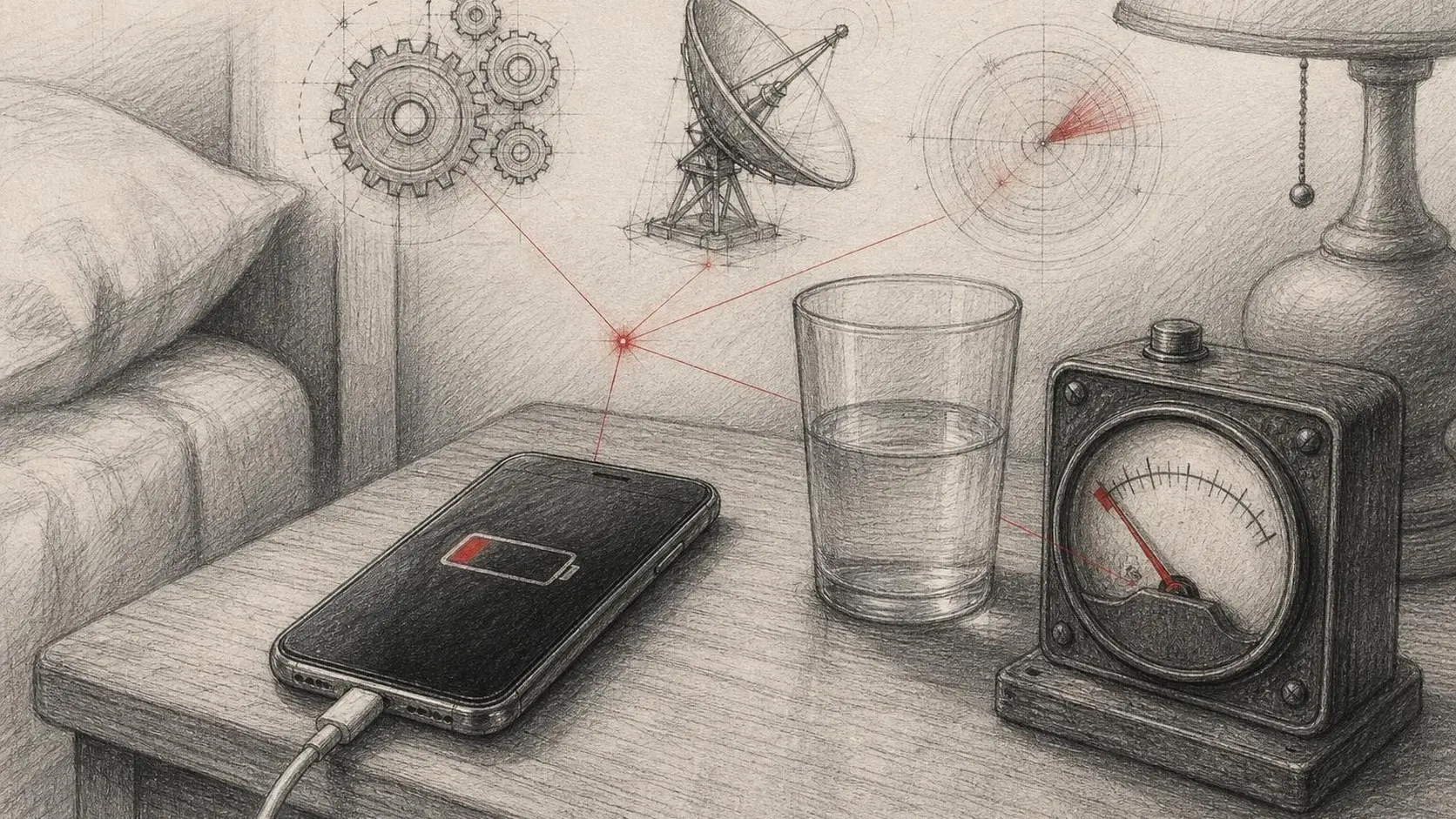
Users judge an app not only by its features but by how much of the device it consumes. Excessive location use, background requests, frequent syncs and heavy animations shorten battery life and erode trust. And when the system lists an app near the top of battery consumers, the decision to uninstall comes quickly.
Energy use is hard to notice during development: the phone on the desk is plugged in and sessions are short. That is why in our projects we measure it deliberately, with a defined scenario and on real devices. Below is where costs usually hide, what thresholds Google Play sets and how to build a process so energy efficiency does not depend on random complaints.
Why this is now a Google Play visibility issue
Android vitals lists excessive partial wake locks among its core quality metrics, alongside crash rate and ANR. Partial wake lock use is considered excessive when all of an app's partial wake locks together run for two or more hours in a 24-hour period, counting only time in the background or while a foreground service is running. If this happens in more than 5% of sessions over 28 days, Google Play may reduce the app's visibility.
Vitals exempts some scenarios where the user benefit is clear and there is no alternative: audio playback, location and user-initiated JobScheduler jobs. All other background activity needs a justification.
| Android vitals metric | What it measures | Typical cause |
|---|---|---|
| Excessive partial wake locks | Total background wake lock time of 2+ hours per day | A forgotten release, custom background logic instead of WorkManager |
| Stuck partial wake locks | A single wake lock held for a long time | An exception-handling bug, a wake lock with no timeout |
| Excessive wakeups | Frequent device wakeups from alarms | Exact AlarmManager alarms for tasks that do not need precision |
| Excessive background Wi-Fi scans | Network scanning in the background | Device discovery or location lookups without need |
| Excessive background network usage | Mobile data used in the background | Server polling, unbounded prefetching |
Where to look for costs
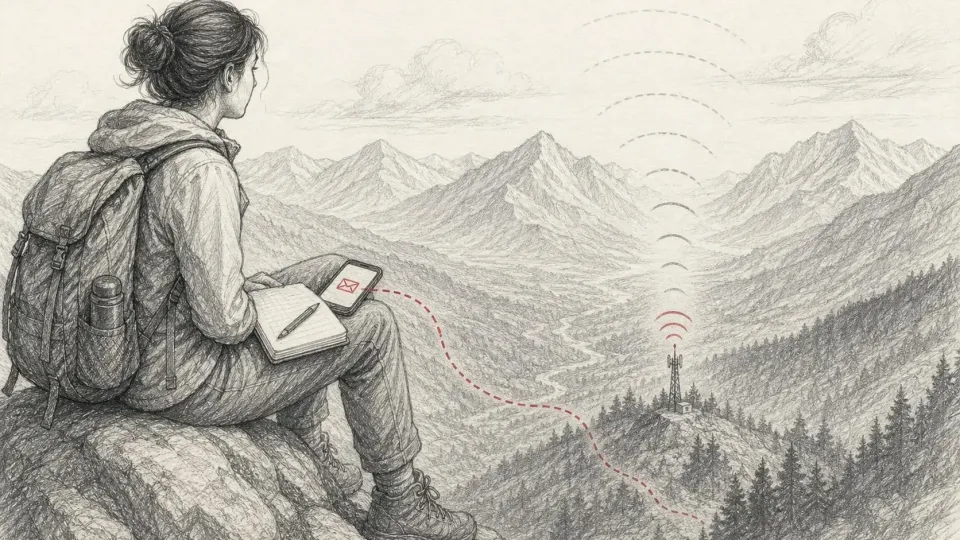
- Background work without a clear need. Syncing every few minutes when data changes once a day.
- Polling instead of events. Push messages or batched sync are almost always cheaper than regular polling.
- Sensors left active. GPS, camera or Bluetooth scanning after the screen is closed.
- Wrong location accuracy. High accuracy where city- or district-level would do.
- Off-screen animations and video. A Lottie animation or autoplay in a hidden tab keeps loading the GPU.
- Third-party SDKs. Analytics and ads may run their own background jobs the team does not know about; we described how to audit dependencies in our article on unnecessary third-party libraries.
How to measure energy use
- Record a baseline scenario. Device model, OS version, network type, brightness, usage duration and background conditions. Without this, two measurements cannot be compared.
- Choose tools. On Android, the Power Profiler in Android Studio on devices that support energy measurement, Background Task Inspector for WorkManager and Perfetto system traces. On iOS, the Energy Organizer and energy reports in Xcode, plus MetricKit for production data.
- Profile a concrete journey. For example, 30 minutes of navigation, an hour in the background after an order or an overnight idle period. A generic "one-day test" yields little useful information.
- Check background mode separately. Lock the screen and see what the app does over the next few hours: wake locks, network requests, alarms.
- Confirm the optimisation did not break freshness. Less frequent sync must not lead to stale statuses in key journeys.
- Compare releases with the same method. An energy budget is only useful when it is checked regularly.
What usually has the biggest effect
- Moving background work to WorkManager with network and battery constraints; the minimum interval for a periodic job there is 15 minutes, which is enough for most scenarios.
- Replacing polling with push messages that wake the app only when there is new data.
- Batching network requests so the radio switches to its active state less often.
- Choosing the minimum sufficient location accuracy and turning it off when the result is not visible to the user.
- Stopping animations, video and sensors in lifecycle callbacks when the screen is inactive.
- Local caching that reduces repeated downloads; its limits are covered in our article on caching.
On iOS the system restricts background work more strictly, but that does not take responsibility away from the team. For tracking movement that does not need high accuracy, the significant-change location service is a better fit than continuous GPS. The system runs background refresh via BGTaskScheduler at its own discretion, so critical logic should not depend on it. And in Low Power Mode, which an app can detect through ProcessInfo, it makes sense to automatically reduce update frequency and turn off video autoplay and decorative animations.
Transparency for users
People should understand why a permission or background activity is needed. Navigation during a trip is obvious. An app reading location with no visible outcome looks like a risk to both privacy and battery. Explain the purpose before the system prompt, offer a choice of update frequency and show when background work is active, for example with an ongoing notification while tracking a delivery.
Common mistakes
- A wake lock with no timeout that is never released after an exception.
- Exact alarms for tasks that do not need minute-level precision.
- Using a foreground service to "work around" background restrictions.
- Testing only while charging and on stable Wi-Fi.
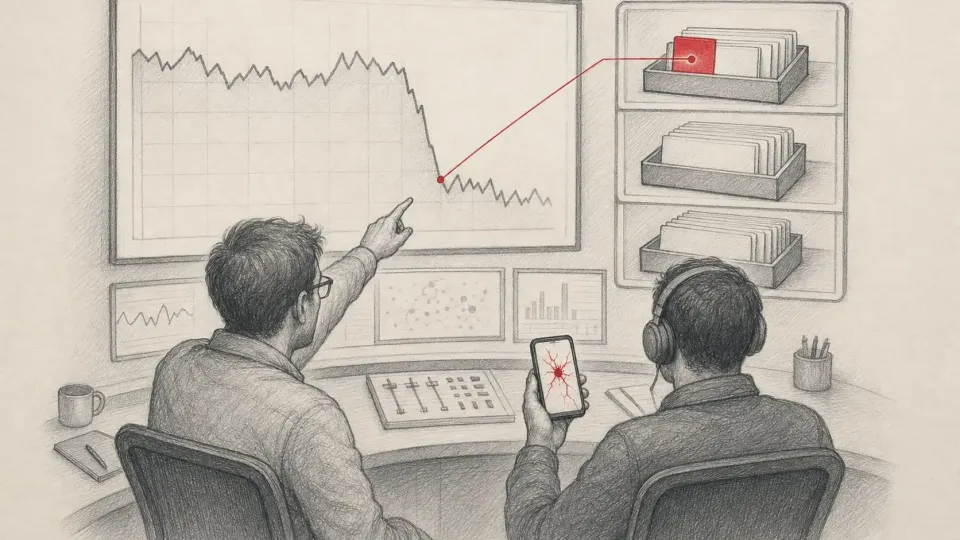
- No post-release monitoring: problems are found through reviews rather than metrics.
Energy efficiency checklist
- Every background task has an owner, a justification and constraints.
- No wake locks without timeouts; wake lock and wakeup vitals are below thresholds.
- Polling has been replaced with push or batched sync.
- Location accuracy matches the task, and sensors turn off when the screen is not active.
- The energy scenario is checked on real devices before every major release.
- Users can see why background activity is needed and can control it.
Sources: Android Developers: Android vitals; Android Developers: Excessive partial wake locks; Android Developers: WorkManager; Android Developers: App quality and user experience; Apple: MetricKit.